Printing Labels with an ODBC Connection
Reasons behind using ODBC over DDE Server of Label View.
Newer versions of Label View are removing the DDE Server option, the AGS Label View Interface uses to connect and print labels. Setting up an ODBC Connection allows Label View to read an exported database file with the AGS tag information. Listed below will be the steps to setup the ODBC connection up.
Setting up a Central Folder location
Single or Network Label View printing will require a centralized folder preferably on the install hard drive of AGS.
Create a new folder on the hard drive all Label View users can access.
A good generic folder name is BAS Labels.
Export a sample Labels DBF file from AGS.
The sample DBF File will be used to setup the connections between AGS and Label View
Open up the AGS Software
Select the Inventory Label View Screen

Select a Label to Print
Go to the Options Tab
Check the option to Create Export File.
Set the Export Path to the Central Folder - Sample name BAS Labels
Name the Export file - LABELS, this is done in the Export file Name field.
Set the Option to Overwrite if the File already exists
Select the Export LBL File button at the bottom. This will create the Database file for the ODBC connection
Local Workstations ODBC Setup
All local workstations or the single workstation which prints labels will require the ODBC setup.
Microsoft Windows XP Operating Systems
My version of Windows is 64 bitSelect the Start Button - Control Panel - Adminstration Tools - Data Sources(ODBC):
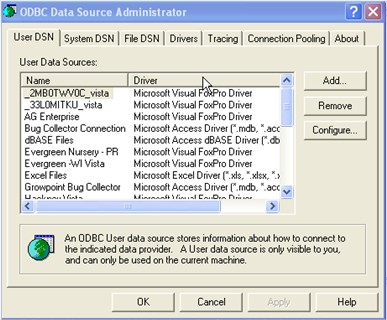
Select the Add Button
Find the Microsoft Visual Foxpro Driver. This option is usually at the bottom of the list of ODBC drivers.
Use the Finish Button
Setup of the ODBC Driver

The Data Source Name and Description can the same and is usually easier if they match, recommendation of Label View Labels. This information will show up on the ODBC windows and will be used in Label View to link to the export file.
Select the Database type as Free Table
Use the Browse button to find the Exported Labels DBF file created. The file will be found in the centralized folder created earlier in the instructions.
Select the Save/OK buttons on all screens as they are closed.
Connecting the ODBC to the Export File
The connection to the Export file will be required for every label printed with this option.
Open Label View
Open an existing Label
Select Options - Directories

Select the Data Source button on the screen. On the new window find the ODBC connection created earlier. The Sample name is Label View Label.
Once the Data Source is selected use the OK button to close down the directories window.
Connecting the Label to the ODBC Connection
This step will require setup of all the fields on the Label. If multiple labels are being used the setup will be required per label.
Select the Label to connect:
Find the first field on label reading data from the Export File
Right click on the field, selecting Edit
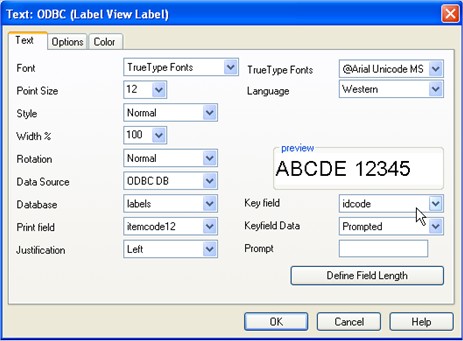
Most of the fields are preferences to how the field on the Tag prints but there is several important field changes required to connect to the ODBC Connection.
Data Source - ODBC DB
Database - Labels (this is the database created ealier in the instructions)
Print Field - This is the information displayed on the Tag and read from AGS.
Key Field - The key field is an important link for the tags and will be one of two options
IDCODE - This is for Inventory tags, no Sales Order information
ORDERNO - For any Sales Order tags
The remaining fields are to user preference specifications. Remember all fields on the Tag receiving data from AGS will require a setup link to the ODBC.