Accounts Receivable - Setup (Page 6)
<<< Previous Next >>>Invoice
use this tab to define the default setting on how to print out your invoice/acknowledgements. You can change the options at anytime, and you may want to experiment with different ways to print them until finding the desired result. The following are options for use when printing:
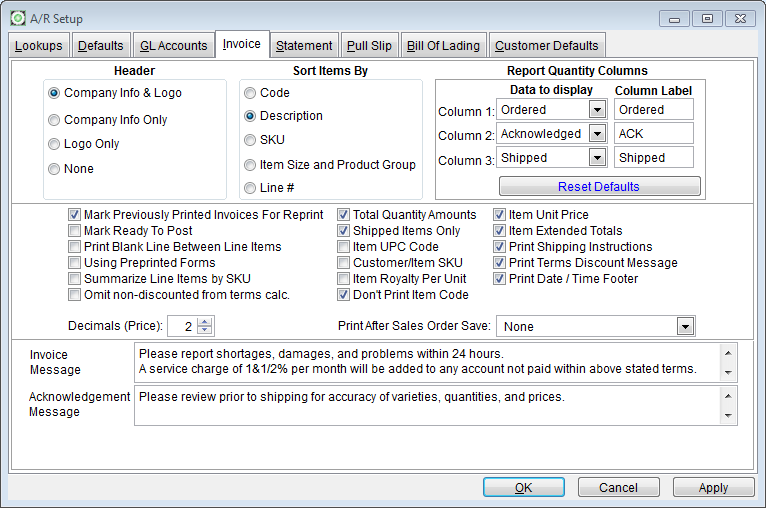
Header
- Company Info & Logo
- Mark this radio button if you wish the system to print all the company information and the company logo. Used only with laser print capability.
- Company Info Only
- Mark this radio button if you wish the system to print only the company information and not include your company logo.
- Logo Only
- Mark this radio button to print only the logo on invoices and acknowledgements.
- .None
- Mark this radio button to omit any company or logo information from your invoices.
Sort Items By
- Code
- Mark this radio button if you wish to have the line items sorted by item code.
- Description
- Mark this radio button if you wish to sort the line items by the description.
- SKU
- Mark this radio button if you wish to sort the line items by the stock-keeping unit (SKU).
Report Quantity Columns
This section of the invoice setup tab provides the ability to select the data to display for up to three columns on the invoice. Each column has a “Data to Display” and a “Column Label” to be printed on the invoice. Choose from the following choices in the Data to Display drop down menu:
- · None ·
- Ordered ·
- Acknowledged ·
- Shipped ·
- Conversion Factor ·
- Conversion Qty ·
- Box Factor ·
- Box Qty
Other Option Settings:
- Mark Previously Printed Invoices for Reprint
- If you do not have this option selected and you have already printed the invoice, it will not reprint again.
- Mark Ready to Post
- This option may be selected if you are ready to post your orders after you print the invoices. You may also mark an order ready to post directly on the order entry screen.
- Print Blank Line Between Line Items
- Check this box if you wish to have a blank line inserted between each detail line on the invoice.
- Using Preprinted Forms
- Check this box if you are using preprinted forms.
- Summarize Line items by SKU
- Groups line items by SKU identification.
- Omit non-discounted from terms calc.: Do not include non-discounted items in the calculation of cash discount terms given to customer for early payment. Example: Customer may be set up for 2%10 Net 30. If user wants those terms to only apply to inventory items that may have a discount, select this option.
- Total Quantity Amounts
- Select this option if you want the total quantity of amounts ordered to appear on the invoice.
- Shipped items only
- Select this option if you wish only the shipped items to appear. Sometimes you may ship part of an order and may want to do a backorder, but the original order’s invoice still needs to be printed, and you may want only the shipped items to appear.
- Item UPC codes
- Select this option if you want the UPC codes to print.
- Customer/ Item SKU
- Select this option if you want to print the customer SKU codes.
- Item Royalty per Unit
- Select this option if you want the royalties to show on the invoice.
- Don’t Print Item Code
- Select this option if you do not wish to print the item code, just the item description on your invoice.
- Item Unit Price
- Select this option to print the unit price.
- Item Extended Totals
- Select this option to print extended totals
- Print Shipping instructions
- Select this option if you want the shipping instructions to print. These instructions are entered in the customer record.
- Print Terms Discount Message
- Select this option if using terms that offer discounts.
- Print Invoice After Sales Order Save,/
- Prints invoice automatically upon saving the sales order.
- Decimals
- Enter the number of digits after decimal point to print on invoice/acknowledgment.
- Invoice Message and Acknowledgement Message
- Type in a message to default onto each form as it is printed, respectively.