Accounts Receivable - Setup (Page 7)
<<< Previous Next >>>Statement
This tab is used to set data criteria for printing statements.
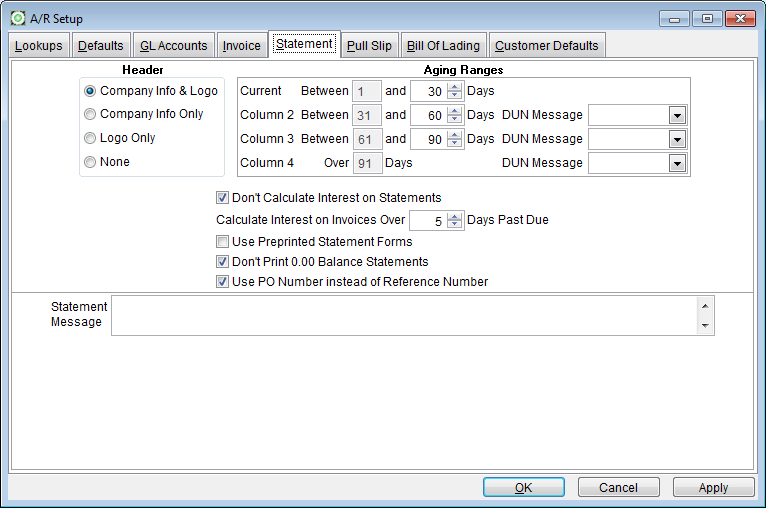
Header
- Company Info & Logo: Mark this radio box to print all the company information and the company logo. Used only with laser print capability.
- Company Info Only: Mark this radio box to print only the company information and not include your company logo.
- Logo Only: Mark this radio box to print only the logo on invoices and acknowledgements.
- None: Mark this radio button to omit any company or logo information from your invoices. (For use of preprinted forms.)
Aging Ranges
- Enter the number of days in each of the calculation periods.
Other Options
- Check the box to not calculate interest
- Enter the number of days to begin calculations of interest.
- Use Preprinted Statement Forms: Select this option if you are using preprinted forms.
- Don’t Print Zero Balance Statements: Select option to suppress statements with zero balance.
- Use PO number instead of reference number: Check the box to use purchase order number.
Statement Message
- Enter a statement message to be printed on all statements.
Pull Slip
The pull slip is an internal document used as a guide of items to pull and, if using location inventory, exactly where the items are located. The workers may then complete the pull slip and return it to the office.
This report may be used in a variety of ways to meet user needs. Although Dsys32 identifies it as a pull slip, the user may even change the report name. Use the options listed to create the report needed for your business.
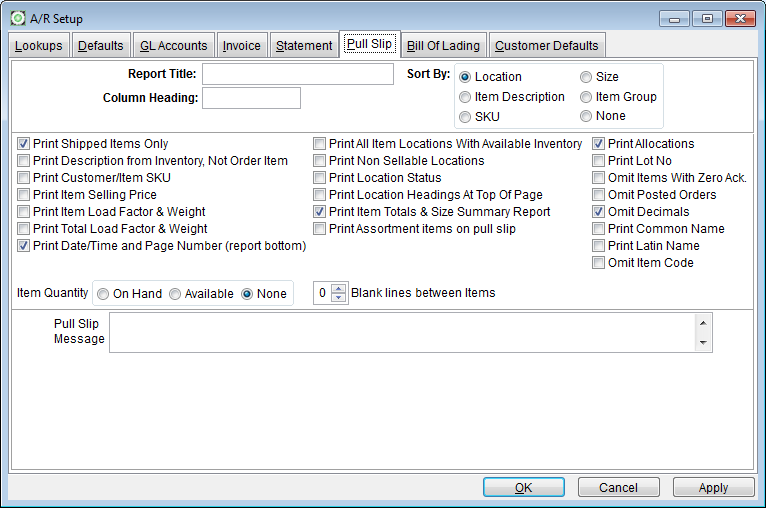
- Report Title:
- Select a title of up to 20 alphanumeric characters.
- Column Heading:
- The rightmost column on the report is available for user notations as the report is being handled. A common use is to note (by hand) the actual quantity of the filled order. Another use could be for the order filler to initial the line item as completed. This column may be labeled with up to 13 alphanumeric characters.
- Sort By:
- Select the order in which the information prints. Click on the method to use.
- Location (if using location inventory)
- Item Description
- SKU
- Size (ascending)
- None (as entered on the order)
Other Options
Check the boxes as needed.- Print Shipped Items Only: Prints only items “shipped” on the order.
- Print Description from Inventory, Not Order Item descriptions.
- Print Customer/Item SKU: Prints customer item numbers and SKU’s (disabled if sorting by SKU)
- Print Item Selling Price
- Print Item Load Factor & Weight: Select this option to print load factor and weight
- Print Total Load Factor & Weight: Select this option to print the total load factor and weight
- Print Date/Time and Page Number (report bottom)
- Item Quantity: Choice of On Hand, Available or None
- Print all item Locations with Available Inventory: (disabled if sorted by location)
- Print Non-Sellable Locations
- Print Location Status
- Print Location Headings at the Top of Page
- Print Item Totals & Size Summary Report
- Print Assortment Items on Pull Slip: Selection of this option causes the assortment descriptions to print in addition to the individual items in the assortment.
- Blank lines between Items
- Print Allocations: Print allocation detail on the pull slip (disabled if sorted by location)
- Print Lot Number: Number comes from item location record.
- Omit Items with Zero Acknowledged: Items with zero acknowledge amounts will not print when this option is selected.
- Omit Posted Orders: Only non-posted orders will generate pull slips.