Accounts Receivable - Customer - Order Info
The default terms, salesman, discount amount, and freight amount information is defined on the Order Info tab of the Customer screen.
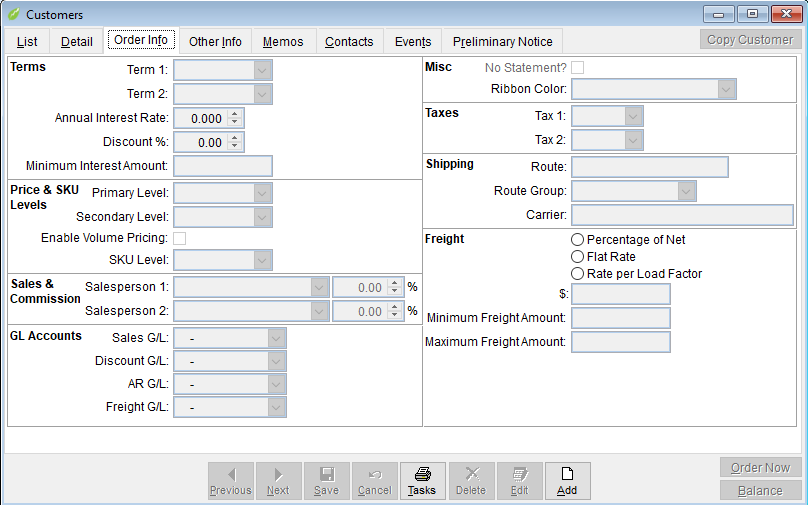
Terms: Select the terms for this customer from the scroll down menu. GrowPoint allows two terms codes to be set up for each Customer record. Terms codes must be set up on at Accounts receivable Set Up screen prior to entering a terms code on a Customer record. When a customer order is entered, the terms of the order a defaulted from the terms set up on the Ship To Customer record. The Terms code on the order can be changed is necessary however, the default Terms code is only changed through the Customer screen.
Price Level: A unique feature of GrowPoint is the ability to set up and maintain different Customer Price Levels. A Price Level is a way to sell the same item to customers at a different price. Each customer must have a Price Level assigned or the selling price is not assigned by the system during Order Entry.
Price Level records should be set up prior to creating Customer records. Refer the to Inventory Manual for information about setting up Price Levels.SKU Level: When customers require that their SKU appear on their invoices, GrowPoint can easily locate the correct SKU based on the SKU level set up on the Customer screen. SKU Level records should be set up prior to creating Customer records. Refer the to Inventory Manual for information about setting up SKU Levels.
Salesman: When an order is entered for a Customer, the ability to track a salesman for the order is a powerful feature in GrowPoint. Enter the default Salesman code. The Salesman code must be set up on the Accounts Receivable Set Up screen before it can be assigned to a Customer record.
When a customer order is entered, the system assigns the new order with the Salesman code set up on the Ship to Customer record. If necessary, the Salesman code on the Sales Order can be changed but the default Salesman code is only changed through the Customer screen. A Salesman Commission Report is available in GrowPoint. Refer to the Reports Section for additional information on this report.
MiscNo Statement - checking this box will omit this customer from the list when running statements.
Ribbon Color - Allows a Ribbon Color to be assigned to this customer from the list of predefined Ribbon Colors in Inventory. The customer ribbon color will default to all orders for this customer.
NEW in 2020! PO Required - A check box has been added to this section named "PO Required". Checking this box will not allow an order to be saved for this customer without a Purchase Order Number assigned.
Tax 1 and 2: If a customer is charged sales tax for an order, enter the Tax code. GrowPoint provides two fields to enter tax codes. In Canada, the ability to charge a Provincial Sales Tax and a Goods and Services Tax can be accomplished by setting up two Tax codes in the Accounts Receivable Set Up screen.
A Sales Tax Report is available in GrowPoint. Refer to the Reports Section for additional information on this report.
Route: If a customer is part of a specific delivery route, enter the Route code. A route code is not set up on any set up screen so be careful that all routes are entered exactly the same.
GrowPoint considers upper and lowercase characters to be different for the Route code.
The system does not use this field for any reporting or processing at this time.Sales G/L: There are several methods for determining how the credit General Ledger account number is assigned to a line item entered on an order. One possibility is to have the account number default from the Ship to Customers Sales G/L field. The Sales G/L is never tied to a Ship to Customer, so leave this field empty. When an item is added to a sales order, the system chooses the Sales account number from a list of possible accounts. Here is the sequence the system uses to assign a Sales account to a line item on a sales order:
- 1. If the item code has a Sales account set up on the Inventory Details screen, the system use that account.
- 2. If the Ship To Customer record has a Sales account setup, the system assigns that number to the sales order item.
- 3. If the Ship To Customer is assigned a Customer Type, the Sales account set up on the Customer Type record is used.
Freight: Customers can be charged a shipping or freight charge on sales orders. There are three methods for calculating freight in GrowPoint:
- Percentage of Net - Freight is calculated by multiplying the sum of the ‘Freight’ line items by a freight percentage. The term ‘Freight’ means that items that are not marked as ‘Omit from Freight Calc’ on the Inventory Details screen. The system adds up all line items that are not omitted from freight and multiplies the amount by this percentage amount.
- Flat Rate – Freight is calculated using a flat rate. For example, you charge $25.00 to deliver items regardless of the number of items.
- Rate Per Load Factor – This option is used to calculate freight based on the load factor of each item on an order. Each line item has a load factor set up on the Inventory details screen. When calculating freight by load factor, the system multiplies the item ship quantity by the Item Load Factor to determine the total load factor for the item. Each item’s total load factor is multiplied by the Rate Per Load Factor to determine the order freight charge. Here is a freight example calculation for a Rate Per Load Factor of .40
- Minimum Amount – If using the Percentage of Net or Rate Per Load Factor method to determine freight, the system provides a minimum amount that can be used.
| Item Code | Ship Qty | Item Load Factor | Total Load Factor | Freight Per Item (X .10) |
|---|---|---|---|---|
| AZAIMP1GL | 15 | .20 | 3 | $1.20 |
| ACEIMP2GL | 50<. | .30 | 15 | $6.00 |
| Total Freight | $7.20 |
Annual Interest Rate: If a customer is charged interest for invoice balances that are past due, enter the annual percentage rate. Leave this field blank for no interest calculation. Interest is charged when printing Statements. The system calculates interest on past due invoice balances by multiplying the overdue amount by the annual interest rate. To calculate a monthly interest fee, divide the annual interest by 12.
Discount %: Some customers are ‘given’ a discount on their sales orders. Enter the percentage as a whole number. For example, enter a 10% discount as 10.00. This discount is different then a Terms discount. A terms discount is ‘taken’ by the customer by paying an invoice within the specified terms date. A ‘given’ discount reduces the invoice balance by multiplying the sum of discountable items by the discount percentage. This discount appears when a sales order is created, but can be changed on the sales order if necessary.
No Statement: If the customer is not to have a statement printed, check this box. Some customers don’t need a statement, so save paper and exclude the customer from statement printing.
- Related Articles:
- Customer Order Info
- Customer Aging
- Sales Orders
- Payments
- Posting