Accounts Receivable - Setup (page 2)
Customer Types
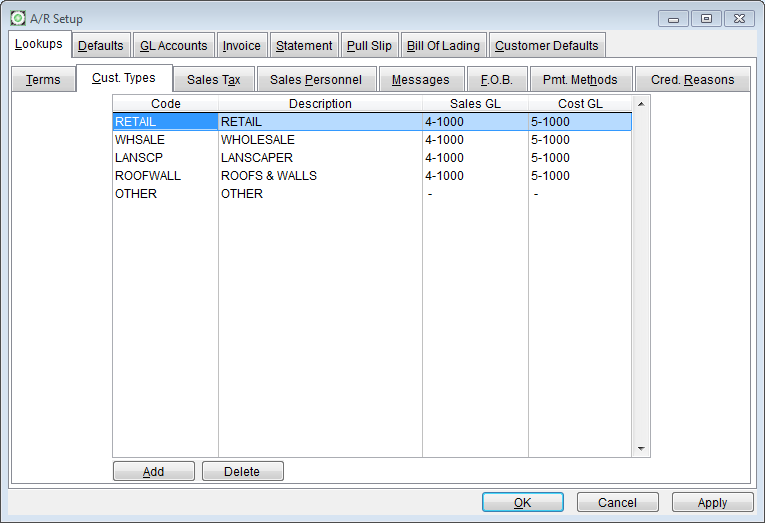
Customer types identify types of customers that purchase your inventory. Landscapers, Garden Centers, Chain Stores, Re-wholesalers, etc are examples of types of customers. Many GrowPoint modules and reports provide the ability to filter, sort, and/or group information by Customer Type.
Code and Description are the minimum amount of information required to have a valid customer type. The code may be up to 10 characters long and the description 25. Sales and Cost GL accounts may be assigned to the Customer Type. These GL accounts will be used just before the Default GL accounts on the GL Accounts tab.
Here is the sequence used to determine the Account Number used for each line item on a sales Order.- Sales Account Number set up on the Inventory Item Detail.
- Sales Account Number set up on the Customer Master Record for the Ship to Customer.
- Sales Account Number set up on the Customer Type for the Ship to Customer.
- Sales Account Number set up on the A/R Set Up Screen.
This sequence is only valid at time the line item is entered on a sales order. Once the item is entered and saved on an order, changing one of the default sequences does not change the account number on the line item record.
Sales Tax
When a business collects sales tax from customers, tax authority information may be defined in GrowPoint. Tax information includes the authority name, tax percentage and default account number for posting sales orders.
Code: Each tax authority is identified with a tax code. Each Tax Code may contain up to three characters or numbers. Typical codes abbreviate the state, city, or local authority name. For example, WA for Washington and LAC for Los Angeles County or GST for Goods and Services are possible tax codes. Tax codes are added to each customer record for customers required to pay sales tax. If it is required to report Tax Exempt Sales, it is recommended to set up codes for Tax Exempt. For example, WAE for Washington State Exempt.
Each Sales Order may have two different Tax Codes. In Canada, use the two Taxes for the Goods and Services Tax and the Province Sales Tax. For local tax authorities, combine the total tax for the local tax, typically a county tax into a single tax code. For example, Los Angeles County includes the total tax for the State of California and the County of Los Angeles.
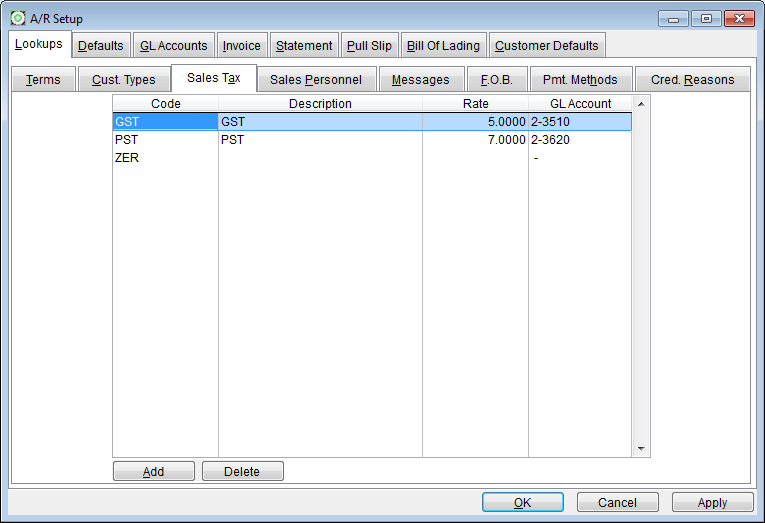
Description: Enter a description or the tax authority.
Rate: Enter the tax rate as a whole number. If the tax is 5%, enter the rate as 5.00.
GL Account: When tax is calculated on a sales order, the tax amount can be posted to a different account number for each Tax Authority. The account number must be set up in Maintenance> General Ledger>Chart of Accounts before it can be added to a tax record.
If the GL account is not added to the tax record, the system uses the default sales tax account defined in the Maintenance>Accounts Receivables>Setup.
Sales Personnel The ability to track sales by salesperson is a powerful feature in GrowPoint. Each salesperson is setup in the sales personnel file and then may be assigned to a customer master. When a sales order is entered for that customer, the default salesperson code is attached to that sales order. Each salesperson is assigned a unique code. The code is used to identify the salesperson on a sales order. To add a new salesperson, press the Add/Edit/Delete button.
The Sales Personnel Tab shows a list of current salesperson records in the system. When the Add / Edit / Delete button is pressed a new window listing sales people appears.
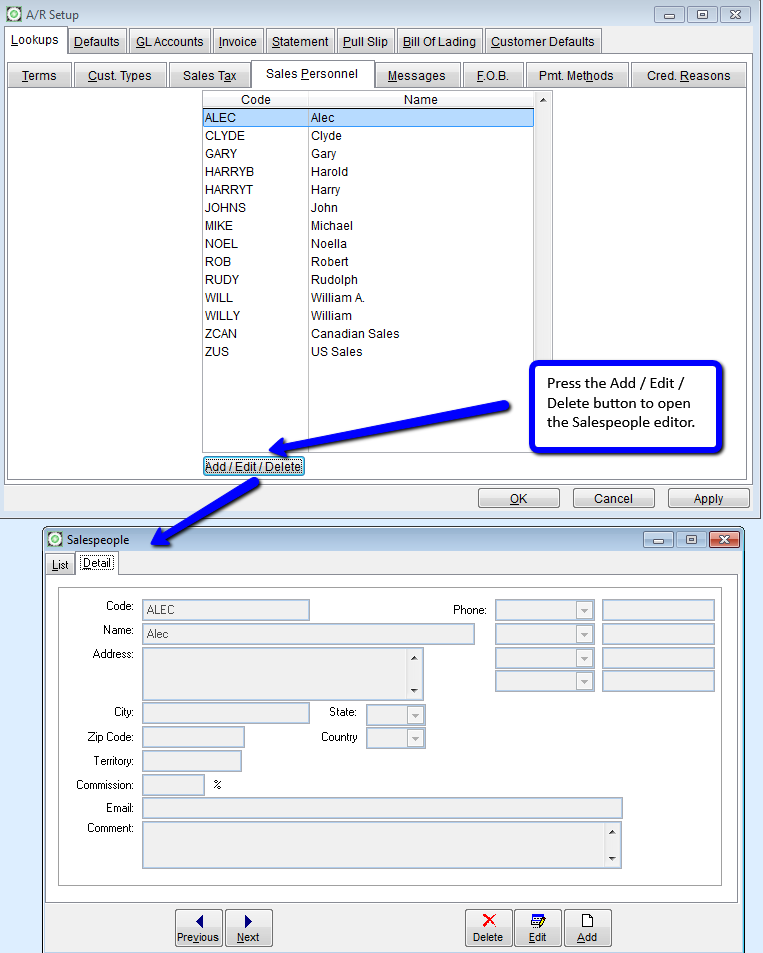
To add new records, press the Add button. To edit existing salesperson information, highlight the desired record on the list and press the Edit.
The Salespeople Detail Tab contains information about sales individuals. When setting up a new record, only the Code and Name fields are required. The commission field is used for calculations. The remaining fields are used for information only.
Code: Enter up to ten characters or numbers as a salesperson code. The code is attached to customer records and appears on sales orders.
Name: Enter the salesperson's name to appear on reports. The name prints on the Invoice and Acknowledgement report as well as the Sales Commission Report.
Commission: The Sales Commission Report uses the Commission Field to track the commission percentage calculation. Enter the percentage as a whole number. For example, 5% commission is entered as 5.00.
The other fields available can be used to save information about an individual but do not print on reports. These fields are available for use in Crystal Reports.
<<< Previous Next >>>