Accounts Receivable - Setup (page 3)
Messages
link to fobCommunicating to customers is an important part of business. Although you talk to customers on the phone or via fax, important communication is on the Invoice or Acknowledgment form. The Invoice represents your business and the products you are selling. The customer is paying you for goods and services from the Invoice, so the ability to create individual communications for each customer is a powerful feature in GrowPoint. This screen tab is designed to set up three types of messages that print on the following reports:
- Invoice Messages
- Acknowledgment Messages
- Statement Messages
Sometimes messages are as simple as “Please review this Acknowledgment carefully” or “Please pay from this Invoice.” Other times you may want the message to be specific to the customer, like “See us at the tradeshow, Booth 1019” or “Visit our website.” There are many places in GrowPoint where messages or memos can be entered. These types of messages are set up and assigned to a unique Message Code. The ability to create messages and then assign the Message Code to a Customer Master or Sales Order Record eliminates the need to reenter the message each time you want to print something on an Invoice or Acknowledgement.
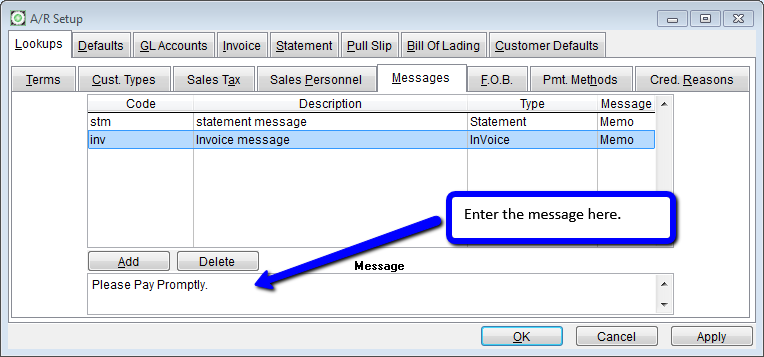
- Click on the Add Item button. A new message record is inserted into the Messages Table.
- Enter a Code and Description for the new message. The Code may be up to three characters and the description is 20 characters. The Description simply identifies the message and is not the actual message that prints on the forms.
- Choose a message type: Acknowledgement, Invoice, or Statement.
- Enter text in the Message field. The column called ‘Message’ shows a value called ‘Memo’ or ‘memo’. The actual message is entered in the Message field located below the message grid. Enter as much text as needed for the message. The message field is a memo field and may contain multiple lines of text.
FOB
The term FOB is an acronym for “Freight On Board.” FOB represents the shipping point where inventory being sold is legally no longer the responsibility of the seller. When inventory is sold to a customer and shipped using a commercial carrier, the seller is responsible for the inventory until it is loaded and shipped. On the customer Invoice, the FOB description is printed to indicate the shipping point for purchased items.
Some nursery operations may ship plants from more then one physical location. Each shipping point can be set up as an FOB in GrowPoint.
A special feature in GrowPoint is the ability to breakdown customer aging and statement reports by FOB. For example, suppose a nursery operates from two separate locations. In this sample operation, a customer order may be shipped from either location. Because a FOB code is assigned to each sales order, the system has the ability to identify the FOB for each order.
The Customer Aging and Statement Reports can be filtered by FOB. This feature prints only customer transaction assigned to a selected FOB. Customer payments and credit may also be assigned an FOB code, which are used to filter these types of transactions on the Statement and Invoice. Reporting by FOB requires special consideration because each transaction must be identified with an FOB code.
To add an FOB Record:
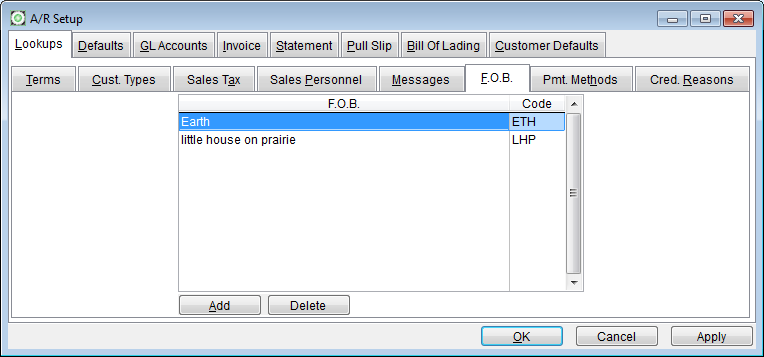
- 1. Press the Add button on the FOB tab.
- 2. Enter an FOB description. The description may be up to 25 characters.
Payment Methods
When a sales order is created, it may be designated as a type. “Regular sSle” or a “Cash Sale" being the most common. Regular sales are posted to the accounts receivable account set up on the G/L Accounts tab in A/R Setup. When an order is a cash sale, the system requires payment methods to indicate how the customer is paying for the order. Payment methods are:
- Cash
- Check
- Credit
- Coupon
- Certificate
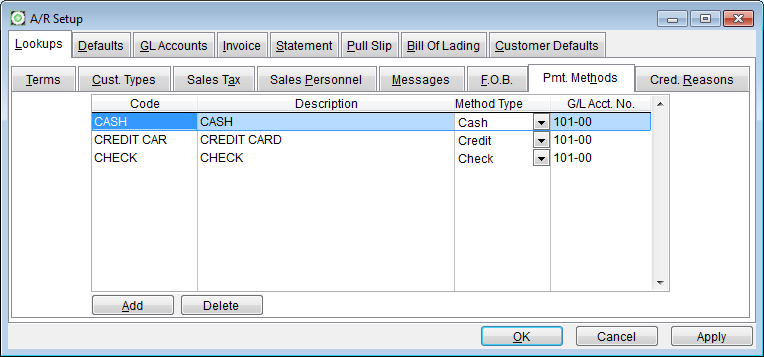
To set up Payment Methods, complete the following steps:
- 1. Press the Add Button to insert a new Payment Method Record on the screen.
- 2. Code : Enter a Code to identify a payment. Up to 5 characters can be used in the payment code.
- 3. Description: Enter a description for this payment method. Up to thirty characters may be used to enter a description.
- 4. Method Type: Select a payment method type from Cash, Check, Credit, Coupon, or Certificate.
- 5. G/L Acct No.: Enter the G/L account number to use when posting the sales payment. (The account must be setup in Maintenance>General Ledger>Chart of Accounts.)
Credit Reasons
A customer can be issued a credit against a sale for many different reasons. Tracking the reason a customer is issued a credit memo is important information for any business. What is the reason for the credit? Poor quality, incorrect pricing, missing items? These are some of the reasons for giving credit. GrowPoint enables you to set up your own reasons for credit and track the reasons through the Credit Memo Screen.
The Credit Memo component allows one Credit Reason to be attached to the entire credit or to an individual line item on the credit. (Multiple line credit memos may have multiple credit reasons.)
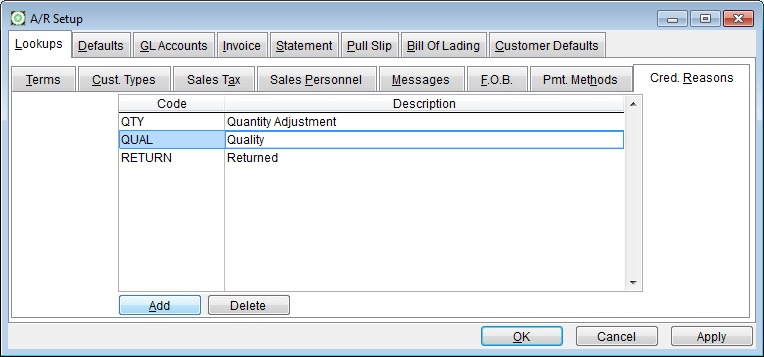
To enter a credit reason, follow these steps:
- 1. Press the Add button on the Credit Reasons Tab to insert a blank record in the Credit Reasons Table.
- 2. Code : Enter a code to identify the credit reason. Reason codes may be up to 10 characters long.
- 3. Description: Enter a description for this credit reason. The description may be up to 25 characters long.