Accounts Receivable - Setup (Page 4)
Defaults
Within GrowPoint are many features that can be customized for your company's needs. The Defaults tab of the accounts receivable setup provides the ability to turn on or off these features. Some features that can be customized include:
- Starting Sales Order Numbers
- Default Order Type
- Default FOB
- Selling Price basis
Defaults need to be configured prior to entering Accounts Receivable (sales order) transactions. Most defaults can be overridden at order entry.
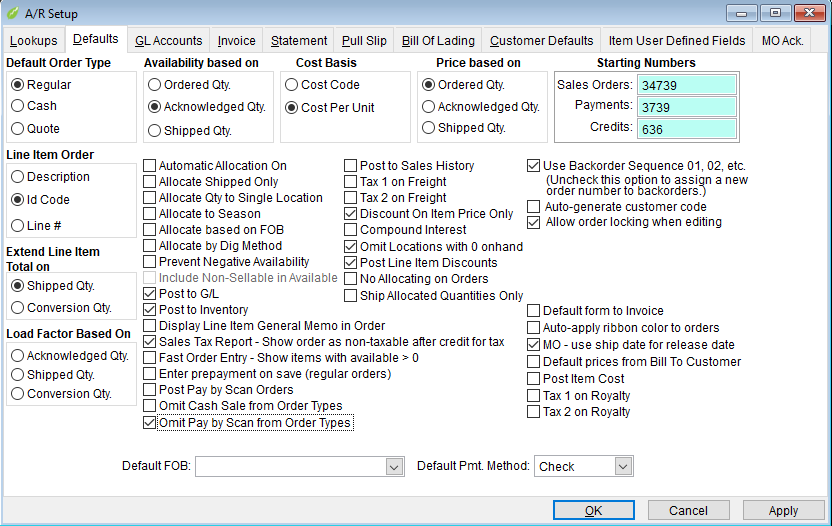
Default Order Type
- Regular –Used for customers not paying immediately for their purchase.
- Cash – Requires a Payment Method to save the order.
- Quote – Items are not committed to inventory until quote is changed to a regular or cash sale.
The type of order you most commonly enter should be the default type. The most common default is a “Regular” sales order. Regardless of the order type selected, it may be easily changed at the time of the sales order entry.
Line Item Order: This default sets the sort order of line items showing on the viewing screen on a sales order. This option does not change the way items are sorted on an invoice or acknowledgement (which are setup on the Invoice tab.) The sort order can be also be changed by clicking on the Item Code or Description column headings in the Line Items Grid of the sales order screen. Select one of the following:
- Description – Line items are sorted by item description.
- Code – Line items are sorted by item code.
- Selection – Line items are sorted in the order in which they are entered on a sales order.
Extend Line Item Total On: Each line item of a shipped order is typically extended by multiplying the item shipped quantity by the selling price. However, in some industries there are situations when the quantity does not represent the same unit of measure for which the selling price is defined. For example, items are shipped by the case but the selling price is based on the ‘each’ quantity in the case. Select one of the following:
- Shipped Quantity –Extends the line item total dollar amount as ship quantity multiplied by selling price.
- Conversion Quantity –Extends the line item total dollar amount as item conversion quantity multiplied by selling price. The conversion quantity is setup in Maintenance>Inventory>Products>Inventory Items>(click on view, go to container/quantity tab), and is either a multiplier or divisor amount. The conversion quantity is then either multiplied or divided by the item ship quantity to calculate the line item conversion quantity.
Load Factor Based On: Prints on the pull slip and load list. Setup is in Maintenance>Inventory>Products>Inventory Items>(click on view, go to container/quantity tab). The load factor can be based on selection of one of the following:
- Acknowledged Qty-Based on number of items acknowledged.
- Shipped Qty-Based on number of items shipped.
Availability Based On: As items are added to a sales order, the inventory committed quantity is updated based on either ordered quantity, acknowledged quantity, or shipped quantity of the line item. Availability is the available quantity calculated from subtracting the committed quantity from the on- hand quantity. This option determines how the committed quantity is updated. Select from the following:
- Ordered quantity-The committed inventory quantity is updated from the line item order quantity. For example, a customer orders 50 items, but only acknowledges 25, the committed inventory reflects a quantity of 50.
- Acknowledged quantity-The committed inventory quantity is updated from the line item acknowledged quantity. For example, a customer orders 50 items, and you acknowledge 30, the committed inventory reflects a quantity of 30 items. This is the most common method calculating inventory availability.
- Shipped quantity-Inventory is committed from the line item shipped quantity. For example, a customer orders 25 items, 25 are acknowledged but only 10 are shipped. The committed amount in inventory reflects a quantity of 10 items.
Cost Basis Code: When an item is shipped on a sales order, the cost per unit is automatically assigned to the line item depending on the value entered in this default. Determining the cost of a sale is important manage ment information. GrowPoint allows cost amounts to be updated when an item is shipped on a sales order (this means when a shipped quantity is entered for the line item). Select one of the following:
- Cost Code-The concept of Cost Basis is discussed in the Inventory manual. Each Cost Basis is assigned a cost amount. Each inventory item may be assigned a Cost Basis Code so that when the item is shipped on a sales order, the cost basis amount is assigned to the line item’s cost per unit amount.
- Cost Per Unit – With this selection, the inventory item’s Cost Per Unit amount is assigned to the line item’s cost per unit when the item is shipped on a sales order.
Price Based On: The selling price for a line item may be calculated from one of three quantities: ordered, acknowledged, or shipped. When selling price is determined by a predetermined quantity level, this option specifies which quantity is used for the calculation. For example, if a customer orders between 1 and 5 units, the selling price is $15.00. For 6 through 24 units, the selling price is $10.00, and for an order of 25 units or more, the selling price is $8.00. The customer orders 25 units, is acknowledged 8 units but only 5 units are shipped. Make a selection from the following to determine which quantity is used.
- Order Quantity-The line item ordered quantity is used to calculate the selling price. In the above example, the customer wanted 25 units but you could only acknowledge 8 units, the order quantity is used to determine the selling unit price, in this case $8.00.
- Acknowledged Quantity-The line item acknowledged quantity is used to calculate the selling price. In the above example, the customer wanted 25 units but you could only acknowledge 8 units, the acknowledged quantity is used to determine the selling price, in this case $10.00.
- Shipped Quantity-The line item shipped quantity is used to calculate the selling price. In the above example, the customer was acknowledged 25 units, but only 5 units were shipped. Because the price is based on the ship quantity, the price is $15.00.
Starting Numbers: GrowPoint automatically assigns transaction numbers for Sales Orders, Credit Memos and Customer Payments. The system maintains these numbers and the numbers cannot be changed by the user as a new sales order, credit, or payment record is created.
In some cases, you may decide to change the next default number. One possibility is changing the range of numbers each year. For example, this year the order numbers start with 10001. Next year change the starting number to 20001, etc. Changing the starting credit and payment numbers can be done also.
When changing a starting number, the number must be higher then the last number currently saved in the system. For example, if the last order number is 1358, the next number must be 1359 or higher.
The following group of options can be marked as ‘on’ or ‘off’. Click in the box to change.
Note: Use tab key, mouse, or down arrow to move between fields. Do not use ‘enter’ key.- Automatic Allocation:
- If using the Locations Inventory Module, this option automatically assigns item locations when an item is added to a sales order. You may also change this option for each order by selecting this option as it appears on the sales order screen.
- Auto Allocate Shipped Only:
- If using the Locations Inventory Module, this option automatically assigns item location when a line item shipped. Only shipped items are allocated when this option is checked.
- Allocate to Season:
- If using Seasons module, with seasons attached to locations, checking this option will allocate first to the season location if the ship date falls into the range of the season and there is available product.
- Allocate Based on FOB:
- If using FOB feature, checking this option sets allocatio n priority to the FOB location.
- Negative Availability:
- When an item is added to a sales order, the system has the ability to not allow items to be saved unless there is enough available inventory for the line item. If this option is checked, then any item may be added to an order regardless of available quantity.
- Post to G/L:
- Once an order has been shipped (even partially), the order should be posted to the general ledger (G/L). There are few situations when an order would not be posted to the G/L. Even if you want to wait until payment is received on the order (cash basis), all orders should eventually be posted to G/L. Even if you don’t need to export posting data to another application, make sure this option is checked. A payment or credit cannot be applied to a sales order until the order has been posted to G/L. Posting to G/L indicates that the order is final and any changes to the order balance must be made as a payment or credit.
- Post to Inventory:
- To maintain an accurate computer inventory, this option should be checked. If you don’t need to maintain a computer inventory, this option may be left unchecked to save time when an order is saved.
- Disp Gen Memo in Order:
- (Display General Memo in Order). Checking this option will cause the general memo [defined on the Customer Master]to display to the user when a sales order is entered.
- Fast Order Entry-Show items with availability greater that 0:
- Selecting this prevents items without quantities available from displaying in fast order entry.
- Post to Sales History :
- The sales history file is updated when a sales order is posted through the Posting routine. Uncheck this option if you do not want the sales history file to be updated.
- Tax 1 and Tax 2 on Freight:
- In some tax jurisdictions, the freight amount charged on a customer sales order is considered taxable. Check this option to include the order freight amount in the sales tax calculation. Because each order may have up to two tax codes, you may check either or both tax on freight options.
- Discount on Item Price Only:
- There are two methods for calculating sales order discounts–
a discount applied to the entire sales order or a discount on line item price only. Use this
option to set up discounts on line items only.
A sales order discount is a discount amount given to a customer based on a flat amount or percentage of the entire sales order. Inventory items may be set up to be non-discountable items. Some items on an order that may be priced as ‘Net’ items, which means they don’t qualify for an additional discount. Only items that have the sell price identified as 'Discountable' on the Price Level are included in the sales order discount.)
A line item discount is a discount given to a customer based on a percentage for a single line item. In most cases, the discount percentage is the same for all discountable items on a sales order.
The ability to turn the discount flag on or off during sales order entry defines the line item as discountable or non-discountable. When using the Discount on Item Price Only feature, the discount percentage entered on the ship to customer master record is defaulted as the line item discount. The discount amount is subtracted from the original selling price to calculate the items selling price.
Discounts are posted to the general ledger accounts specified in Maintenance>Accounts Receivable>Setup, GL Accounts tab. The two fields for discounts are Order Discount and Line Item Discount.
- Compound interest (calculate interest on previous interest):
- Customer interest is charged
to a customer when they have an outstanding balance. To include previous interest amounts
in the balance from which interest is calculated, check this option.
Interest is calculated when the Customer Statement report is printed. Only customers with an annual interest rate set up on the customer master record are charged an interest fee.
- Omit Locations with Zero On hand:
- When an item location is completely sold or cleared by transfer or other reason, the item may be omitted from the Sales Order Item Allocation screen or Product Item Location screen. Only item locations with 0 in the on-hand quantity are not shown. The system doesn’t remove these item location records, but simply omits them from the screens.
- Post Line Item Discounts:
- Check this option if the general ledger account for line item discounts is different from the g/l account for sales order discount. (The next tab in AR setup, GL Accounts, provides the field to enter the account number.)
- Use Backorder Sequence:
- When an order is backordered, a new order is created for the unshipped items of the original sales order. The back order is assigned a new sales order. Typically, the new order is the systems next order number, however, this option creates a new order with the same order number but adds a two-digit suffix. For example, when a backorder is created for Order No. 5567, the first backorder is numbered 5567*01 and the second backorder is 5567*02. This option makes backorder tracking easier because the orders all contain the same number prefix.
- Auto-generate customer code:
- Check this box to allow GrowPoint to select a customer code for each new customer entered.
- Allow order locking when editing:
- To prevent more than one person having access to edit
a particular sales order at the same time, check this option. This option allows users to view
the same order at the same time, but only one user can press the Edit button to make changes.
For example, in a multi- user environment without this option checked, two users access the
same sales order at the same time. The user saving last would save their change, but the
other user’s changes would be lost.
In the event the system indicates another user has locked a sales order, but is not editing the order, double click on this option to display a File Locking screen. From the File Locking screen, the lock on a specific order may be cleared.
- Default Form to Invoice:
- Enabling this option causes ‘print’ in sales order to print invoice unless selection (in the print routine) is made to print an acknowledgment.
- Auto-apply ribbon color to orders:
- Assigns the next available ribbon color to a sales order.
If using Master Order module, assigns the next available ribbon color to the released order and back to the master order.
- MO use ship date for release date:
- For master orders, use the ship date as release date.
- Default FOB:
- Select a default location from the drop down menu. (The FOB selections
must be setup previously in Accounts Receivable > Maintenance>Setup>Lookup tab>F.O.B.
sub- tab.)
Freight On Board (FOB) indicates the point at which the items on a sales order are no longer the responsibility of the seller. For examp le, a commercial carrier is transporting plants to a customer and the FOB could be the seller’s shipping point. If the seller is delivering the plants with their own fleet, the FOB may be the customer site.
The default FOB is the FOB description that appears on sales orders. Usually the FOB description is the city of the seller.
- Default Pmt Method:
- Select from the drop-down menu the payment method that will
default to the payment window when saving a cash sales order.
<<< Previous Next >>>