Inventory Management
Price Levels
The price for which items are sold to customers has become increasingly complex over the past decade. It used to be that an item had a set selling price and each customer paid the same price for items purchased. Although customers sometimes received a special price from their salesman, pricing was straightforward and required little record keeping.
Times have changed and the marketplace has become a complex set of negotiations and contracts. Mass merchandisers and chain stores have changed the way plants are sold. To remain competitive, businesses must be creative in their pricing as well as product offerings. In some markets, an item can be sold at a higher price due to decreased competition. Depending on contracts and service levels, plants sold to one store may have a completely different price than plants sold to another. Oftentimes, the price of an item includes freight and shipping or some other special discounting.
Maintaining Prices for Different Types of Customers
GrowPoint provides an excellent method for maintaining multiple pricing structures. These price structures are called Price Levels. Price Levels represent the price in which plants are sold to different types of customers. For example, consider the following price levels for a single inventory item:
| From Quantity | Catalog Price | Landscaper Price | Home Depot Price | Target Stores Price |
|---|---|---|---|---|
| 1 - 24 | $18.00 | $17.25 | $17.10 | $17.35 |
| 25+ | $17.50 | $17.05 | $16.85 | $17.15 |
This is a simple example and in many situations the number of different prices for a plant may be much more complex. Sometimes the price is based on quantity purchased or even what dates the plants are purchased. For example, a sale date or reduced price for summer purchases.
In GrowPoint, Price Levels are assigned to a customer record. When a customer sales order is created, the Price Level determines the item selling price. This takes the confusion of pricing from the salesperson or data entry clerk and puts it into the hands of the system. When Price Levels are created, each item sold has a different price depending on the price level.
Even if you only have one selling price for all customers, the price is entered as a Price Level.
Selling Price and Customer Discount
When a customer buys an item, sometimes the customer receives an additional discount. Usually, this discount is applied to the entire sale – such as an additional 10% discount. This type of discount is handled by the system but not typically through the price level. Imagine having to create a Price Level for all the different discount percentages given to customers! Price Levels are used to enter and maintain the actual selling price and the customer discount is entered on the customer master record. Refer to the customer section of Accounts Receivable for information on setting up a customer discount.
Creating or Editing Price Levels
Price Levels are created in GrowPoint by selecting the Price Level option from the Inventory Menu. The Price Level List screen shows all Price Level records that have been set up. To add a new price level, click the Add button.
To change an existing price level, use the Price Level List to search by Code or Description. Click into the desired column and type in a few characters for which to search. When the price level record is found, press the Edit button.
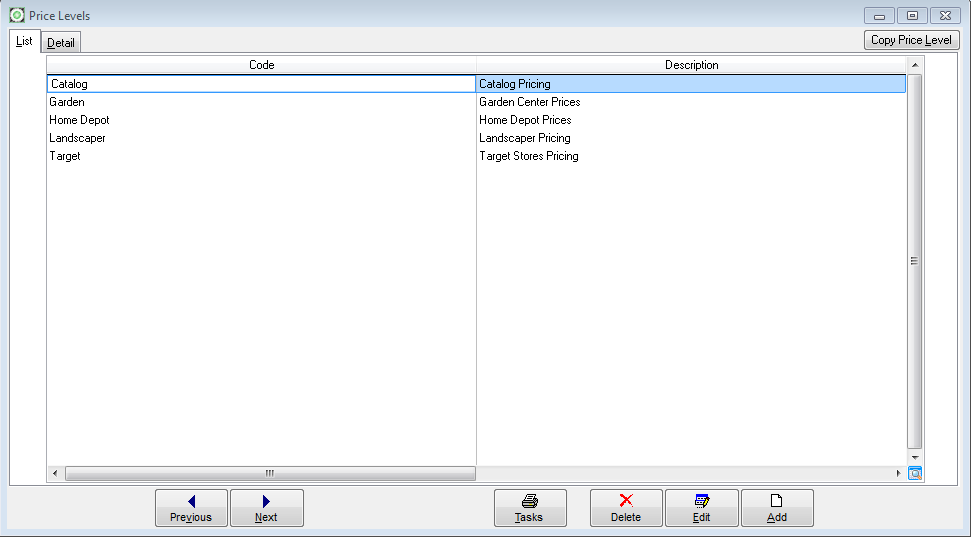 |
| Inventory Price Levels - List |
|---|
The Price Level Detail screen is arranged so the list of inventory items appears in the top section of the form and the prices for each item appear below the items. When an item code is selected in the upper section, the selling prices for the item automatically appear below. The prices shown are only prices for the selected item code.
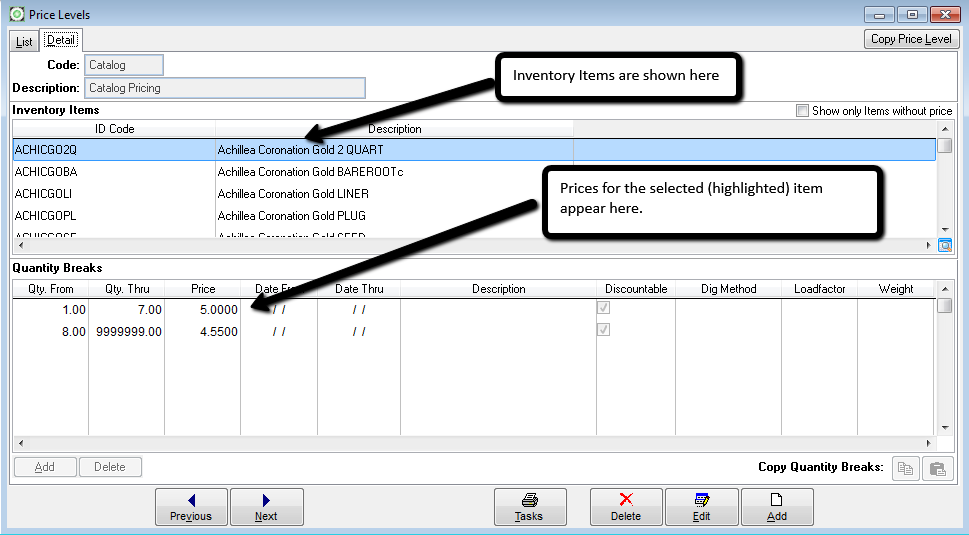 |
| Inventory Price Levels - Detail |
|---|
Use the following steps to create a new Price Level: 1. Press the Add button. 2. Enter a Code to identify the price level. The code may be up to 10 characters. 3. Enter a Description for the price level. 4. Press the Save button.
To add item prices to a price level:
- Locate the desired Price Level from the Price Level List screen and press the Edit button.
- Select an item code from the Inventory Items area. Search on the ID Code or description column by clicking into the desired column and entering a few characters of the item to be located.
- Press the Add Item button to insert a new item price record.
- Press the Save button. You don’t have to Save each item because the save option saves changes for the entire Price Level.
The minimum quantity that can be entered in the Qty From field is 1. If you don’t plan on using quantity breaks for a particular item, leave the Qty Thru field blank and the system automatically fills the value with 999999. Enter a selling price in the Price field.
The Date From and Date Thru fields are optional. Date fields are used to set up selling prices for specific date ranges. For example, suppose a special selling price is offered for the month of July. Set up an item price with a beginning date of July 1 and through date of July 31. When an order is entered for any shipping date in July, the special price is automatically given to the item. Any order entered with a ship date that is not in the special date range is given the normal selling price.
The Description field is not required and may be used to enter any other information about a specific selling price or date range.
Copy and Paste Quantity Breaks
One way to save time when creating Price Levels is to use the Copy Quantity Breaks button to copy the Qty From and Qty Thru numbers that you’ve already entered for a particular item. This feature is handy if all item prices use a specific quantity break like the example shown above. Instead of typing in the quantity breaks for every item, use the Copy Quantity Breaks button to copy prices for one item code and the paste the prices onto another item code.
To copy quantity breaks:
- Make sure you are in Edit mode. Press the Edit button for the selected price level.
- Enter selling prices for a specific item or locate an item record that already has selling prices.
- Click on the Copy Quantity Breaks button.
- Select another item that doesn’t have selling prices.
- Click on the Paste Quantity Breaks button.
- Change the selling prices as needed for the item prices.
You do not need to click the Save button after each Item Qty Break and Price is entered. You should click on the Save button after you have completely entered all of your information about that price level.
Copy Price Levels
When the need arises to create a new price level, yo u should consider copying the data from another price level to serve as the basis for the new Price Level. This features saves time because in many cases, the prices are similar and require minimal changes. For example, suppose you need to create a price level for K-Mart. Since you already have a price level for Target, simply create a new Price Level by copying the Target prices to the new K-Mart Price Level.
To Copy a Price Level:
- Press the Add button to create a new price level.
- Enter a Code and Description for the new price level.
- Select the price level from which you are copying in the Copy From Level box.4. Press the Copy Price Level button, located in the upper right corner of the Price Levels screen.
- Make any necessary changes to the item prices.
- Press the Save button to save the new price level.
 |
| Inventory Price Levels - Copy |
|---|
Assigning a Price Level to a Customer Record
Selling prices don’t automatically appear during order entry until the customer record is assigned a Price Level. Once price levels are created, each customer record should be assigned a Price Level in the Customer Master Record. Each customer may have two Price Levels assigned, Primary and Seconday. When an item is put on an order the Primary Price Level is searched to find a match for the item, quantity, date, and dig method (if chosen). If a match is found, that price will be used. If no match is found, the Secondary price level is used. This is helpful if you run seasonal specials or have a group of customers that receive special prices on a select group of items. Make the special price level the primary level and the generic catalog the secondary. The special prices will get used for the special items and the catalog for everything else.
- Related Articles:
- Customers
- Customer Aging
- Sales Orders
- Price List
- Availability