Change Item Prices
Change Item Prices is an app introduced to GrowPoint in 2005 to serve as a quicker way to modify selling prices of items.
Over the years it has evolved to become the replacement app for Price Levels (Inventory > maintenance > Price Levels).
The app allows you to view/change prices for every item all in one simple grid. Less clicking, few to no pop up forms, and bulk actions make this app an easier and more efficient method for adding and maintaining item price points on multiple price levels.
The form loads will every item price in every price level in a grid. The grid can be filtered and sorted in the same manner as all grids in GrowPoint.
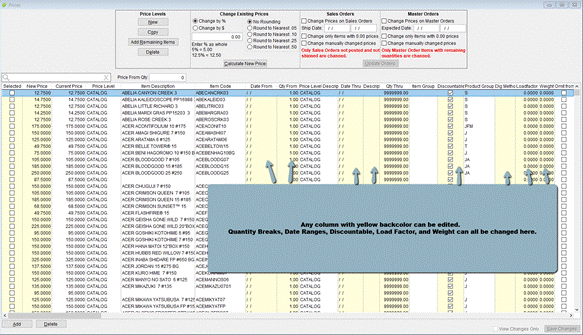
Grid columns with yellow backcolor may be edited and the changes saved.
To change a price of an existing price point – enter the new price in the New Price column on the desired row. Repeat as necessary.
To change many prices – check the selected box next to the records to change and use the ‘Change Existing Prices’ section at the top of the form to change all prices by a fixed amount ($) or a percentage (%). Only one option may be used at a time but either will allow for both positive and negative values. Choose the option, enter the value, choose whether or not to round, and click ‘Calculate New Prices’. The New prices will be displayed in the column labeled ‘New Price’ and the selection checkbox will be unchecked.
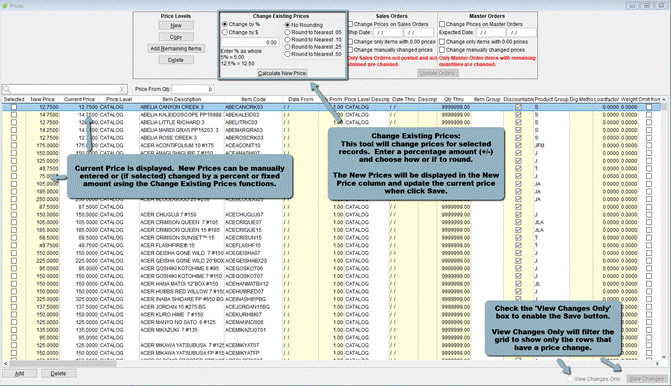
To save changes made to price points check the box ‘View Changes Only’. The grid will filter to show only the records that have had data changes and the ‘Save Changes’ button will become active. Once you have reviewed the changes click the Save Changes button make them permanent.
New records may be added by clicking the Add button at the lower left of the grid. Clicking this button will add a new record to the grid. The new record will be at the bottom, you may have to scroll, prepopulated with the price level and item information from the record the pointer was on when the Add button was clicked. The price level and the item can be changed by right clicking in the field and selecting from the list. Then enter the price and quantity/date ranges.
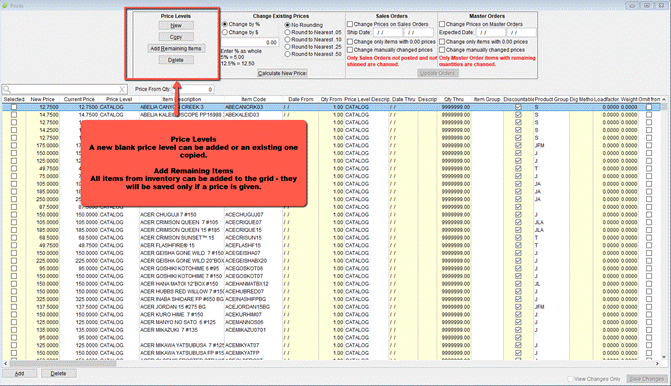
Entire Price Levels may be added or deleted by using the Price Level section at the top left of the form. Click New to add a price level.
A price level may have all the items in inventory added quickly to the grid by clicking the Add Remaining Items button.
Additional Options include the ability to apply these changes to items on existing open orders. Check the appropriate boxes at the top of the form to apply changes to Sales Orders and/or master orders – both can be checked at the same time. Enter any additional criteria such as only for a certain ship date range, only items without prices, and whether or not to change prices for items with manually entered prices. If no options are selected all open (not posted) orders will have their item prices changes except for those with manually entered prices.
- Related Articles:
- Price List
- Price Levels
- Grid Extra