Accounts Payable- Enter Transactions
(Invoices)
Accounts Payable>Activities>Enter Transactions
All invoices to be paid and tracked are entered in this component. The form opens on the Detail tab.
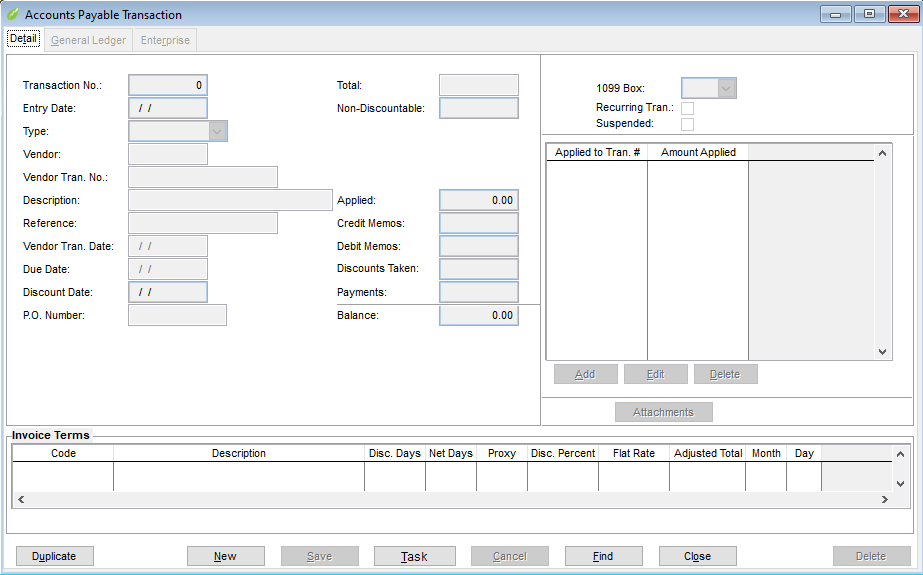 Detail Tab
Detail Tab
To Add a New Invoice...
- Select New to begin entry of an invoice. Transaction number and Entry Date are defaulted by GrowPoint.
- Enter Vendor code or right click to access look up list.
- Enter the vendor Invoice number (up to 23 alphanumeric characters).
- Description and Reference are optional. The description and reference will default to the general ledger and enterprise entries for this invoice. The information may be changed while on GL or Enterprise tab entry. The description and reference will be on the transaction edit list, general ledger reports and on the vendor payment check stub.
- Enter the Invoice Date provided by the vendor.
- The Due Date and the Discount Date are calculated by GrowPoint based on the invoice date and terms assigned to the vendor in vendor setup. The calculated dates may be changed. If no terms are setup for this vendor, the invoice date will default to the due date and discount date.
- To change the discount terms on this invoice, highlight the terms in the grid to change and click Edit button below the grid showing the terms that are available for this vendor. Change fields as needed in the popup window. Click OK to return to Details tab. Do this before entering the invoice date so that GrowPoint can use the edited information in calculating the due date and discount date.
- The PO Number is the GrowPoint purchase order number to be used with the GrowPoint purchase order module.
- Enter any Non Discountable amount for this invoice. Often a vendor offers a cash discount on an invoice except for the dollar amount of the freight. Enter that non-discount freight amount.
- Enter the Invoice Total. · Note: Grayed fields under invoice total show previous information regarding debit memos or partial payments of this invoice.
- 1099 Box will be checked if the vendor setup has 1099 checked. It may be changed during invoice entry. Note: The status of the 1099 at the time the invoice is entered determines if the invoice will be included in the total at yearend.
- Check Recurring Transaction box to set this invoice up to use as a recurring entry. An example of use could be rent payment. Note: The entry will not become an active invoice until the Select Recurring Invoice component is done each month. See Select Recurring documentation for details.
- Check Suspended to prevent this invoice from being paid. When this boxed is checked, this invoice will not show in Pay Vendors. At this point, if general ledger accounts and/or enterprise accounts have been setup in the vendor record and this is a ‘usual’ invoice for this vendor, all data entry is complete.
- If g/l accounts are not setup for this vendor, or the g/l needs additional or different entries, move on to the General Ledger tab.
- If entry is complete, click Save to complete the entry of this invoice, or move on to the Enterprise tab.
- Select Add to enter a g/l account, or Edit to change an existing account.
- AP Transaction General Ledger Entry window opens.
- Enter GL Account or right click for listing
- Enter Debit or Credit Amount (or accept shown amount if correct)
- Description entry will show on G/L Balance and Activity Report.
- Notes are for information only and do not print on any GrowPoint report.
- Click OK to return information to the General Ledger tab.
- Repeat if necessary for addition account entries.
- Select Delete to remove g/l line entry. NOTE: The General Ledger entries must balance to save the record. In accrual method the total in the Debit Amount column must equal the total in the Credit Amount column. The difference between these two amounts is displayed. In addition, the total in both the Debit Amount and Credit Amount column must match the invoice total.
General Ledger Tab
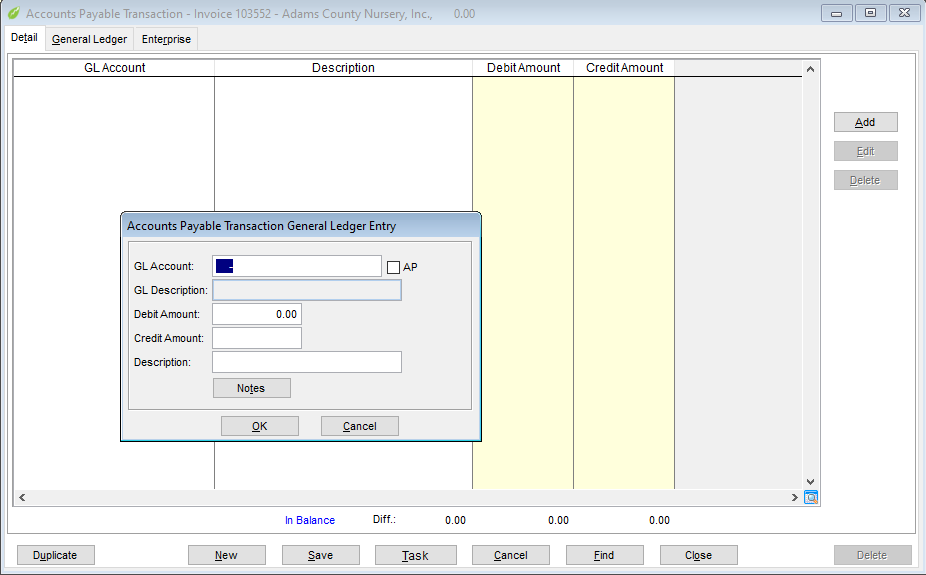
The system enters the accounts payable liability account (accrual basis) or checking account (cash basis), and the first debit entry to a general ledger number entered in vendor setup. If more than one debit or credit entry is needed, or more than one g/l account was entered in vendor setup for this vendor, or no g/l accounts were entered in vendor setup for this vendor, make additional entries on this tab. Entries are not entered into the General Ledger Module until either the AP invoice or the AP check is posted (Activities>General Ledger>Post).
In cash method, the credit general ledger account will be the checking account specified in Activities>Accounts Payable>Pay Vendors. Therefore the credit g/l account will not be viewed on this tab. The Debit and Credit columns combined must match the invoice total. Most commonly there will be only entry in the debit column.
Enterprise Tab
Enterprise is a GrowPoint module to track costs. If a single enterprise account is setup in the vendor’s master record, then the total dollar amount of this invoice will default to that enterprise account and no further data entry is necessary. If more than one enterprise account is used, or if no account is setup in vendor master record, make additions and changes from the Enterprise tab.
Enterprise totals, unlike general ledger, do not have to balance to the exact dollar of the total invoice. Entry into the Enterprise is single sided. (General ledger is double sided; meaning debit and credit entries must balance.) Enterprise entries are recorded to the Enterprise Module as soon as the invoice is saved. The Enterprise date is the invoice date.
Related Articles